Figma to Webflow: Turn Designs into Responsive, Pixel-Perfect Websites
%20(1).avif) Written by Derrick Kityo
Written by Derrick KityoExplore the figma to webflow workflow and turn designs into responsive, pixel-perfect sites with practical tips and best practices.
Bringing a design from Figma to Webflow isn't just a handoff; it's a direct translation. You’re taking a static UI and breathing life into it, turning it into a fully responsive, interactive website. This process bridges the classic gap between design and development, translating Figma’s visual language—components, styles, and layouts—into clean, production-ready code within Webflow, often without a developer having to write a single line.
Why the Figma to Webflow Workflow Changes Everything
The traditional design-to-development handoff is notorious for being where good ideas get lost in translation. We’ve all been there: a designer crafts a pixel-perfect mockup, only to see the final website feel slightly… off. The Figma-to-Webflow process directly tackles this age-old pain point, creating a unified workflow that protects design integrity from the first concept to the final launch.
By linking these two powerhouse platforms, you’re not just saving time. You're building better, more consistent digital experiences by eliminating the disconnect between visual intent and technical execution.
Bridging the Design-Development Chasm
The real game-changer here is creating a single source of truth that flows directly from design into production. When your Figma file is structured with Webflow in mind—using auto layout, well-defined styles, and clear component naming—the build stops being a speculative interpretation and becomes a methodical assembly.
This alignment smooths over so many common frustrations:
- Flawless Design Fidelity: What you design in Figma is exactly what you get in the browser. Every pixel of padding, every subtle animation easing—it all translates perfectly.
- Less Friction: It cuts down on the endless back-and-forth between designers and developers haggling over spacing inconsistencies or incorrect font weights.
- Serious Efficiency Gains: Teams can go from an approved design to a live, interactive website far faster than with traditional hand-coded methods.
To give you a clearer picture, let's compare the old way with the new.
Traditional vs. Figma to Webflow Workflow Comparison
The old-school approach involved multiple handoffs and plenty of room for error. The modern workflow, however, creates a much more direct and collaborative path from idea to live site.
This table really highlights how the Figma to Webflow process tightens the feedback loop and keeps the original design vision intact.
The real power of the Figma to Webflow process is its ability to empower designers with development capabilities and give developers a crystal-clear blueprint. It fosters a more collaborative environment where both sides speak the same visual language.
As this workflow becomes more standard, it's also carving out new career paths. Professionals who master this skillset are in high demand—you can even explore current job openings related to Webflow to see for yourself. Ultimately, this method ensures the final product is a true, scalable reflection of the original vision, built on a foundation that’s easy for anyone to manage and update.
Preparing Your Figma File for a Flawless Handoff
A high-performing Webflow site isn't born in the Webflow Designer; its DNA is coded directly into your Figma file. Treating your design file as a mere visual guide is the quickest route to a frustrating, inefficient build. Instead, you need to think of it as the architectural blueprint that dictates the entire construction process.
A meticulously organised Figma file translates directly to a clean, scalable, and maintainable Webflow project. This preparation phase is where you front-load the work to save dozens of hours down the line. It’s all about structuring your design with the logic of web development in mind, ensuring every element behaves predictably when you move from a static canvas to a live, responsive environment.
Establish a Webflow-Ready Style Guide
The foundation of a smooth Figma to Webflow process is a robust style guide. This isn't just about picking colours and fonts; it's about creating a system that maps directly to Webflow's global styles.
Start by defining your core visual elements:
- Typography: Define all your heading styles ( H1 to H6 ), paragraph text, blockquotes, and link styles. Name them logically (e.g., Heading 1 , Paragraph - Large ) so they can be easily recreated as HTML tags and global classes in Webflow.
- Colour Palette: Create swatches for your primary, secondary, accent, and neutral colours. The key is to name them according to their function (e.g., brand-primary , text-dark , background-light ) rather than the colour name itself (e.g., Bright Blue ). This semantic approach makes future maintenance in Webflow far more intuitive.
- Spacing System: Settle on a consistent spacing system, ideally based on an 8-point grid. Define your spacing values (e.g., 8px , 16px , 24px , 32px ) and use them consistently for all margins and padding. This system becomes the backbone of your utility classes in Webflow, ensuring visual harmony across the site.
This image shows a well-organised Figma interface, highlighting how a clean design system with defined components and styles is the first step in a successful project. Notice how components and styles are clearly laid out. This is essential for translating the design's logic into a functional Webflow site.
Master Auto Layout for Responsive Behaviour
Auto Layout is Figma’s most powerful feature for simulating how elements will behave on a real website. Using it correctly is non-negotiable for an efficient workflow. It allows you to create components and frames that adapt to their content, just like a flexbox container in CSS.
When building components like buttons, cards, or navigation bars, use Auto Layout to manage padding, alignment, and the distribution of items. This means that when you rebuild these in Webflow using flexbox or grid, their responsive behaviour has already been tested and validated. It completely removes the guesswork and makes development feel more like assembling pre-fabricated parts than building from scratch.
By mastering Auto Layout, you're essentially writing visual CSS before you even open Webflow. You’re defining the rules for how elements should reflow, stack, and resize—the core principle of modern responsive design.
Figma's intuitive interface has made it a dominant force in the design world. Its accessibility is a key factor, with studies showing that approximately 66% of its users are non-professional designers who use its collaborative features to bring ideas to life. You can learn more about Figma's user base and its impact in this insightful article on its company growth .
Implement Logical Naming Conventions
How you name your layers and frames in Figma directly impacts your Webflow project's organisation. A messy layer panel in Figma almost always leads to a chaotic class structure in Webflow.
Adopt a clear and consistent naming convention for every single element. For instance, structure your frames to represent the main sections of your page ( Section - Hero , Section - Features , Section - CTA ). Within these sections, name elements based on their function ( Card - Feature , Button - Primary , Image - Testimonial ).
This disciplined approach makes it incredibly simple to create a corresponding class naming system in Webflow, like Finsweet's Client-First. It improves scalability and makes long-term maintenance much easier for everyone involved. For more detailed guidance, check out our advice on what makes a good Figma file for Webflow .
Choosing Your Path: Manual Build vs. Automated Plugins
So, your Figma file is polished and ready to go. Now you're at a crucial fork in the road: how do you get that perfect design out of Figma and into a living, breathing Webflow project?
This is where the real translation happens, and you have two very different ways to approach it. You can either go for a meticulous, hands-on manual build, or you can opt for a speedy, automated conversion using a plugin.
The path you choose will have a huge impact on your project's quality, how easily you can scale it, and its long-term health. One route gives you absolute control and top-tier performance, while the other offers a shortcut for rapid prototyping, but often at the cost of code quality. There’s no single "correct" answer, but knowing the trade-offs is key to making a smart decision that actually fits your project's goals.
The Professional Standard: The Manual Rebuild
For any serious project that demands quality, performance, and a future-proof setup, the manual rebuild is the undisputed professional standard. It's exactly what it sounds like: you recreate your Figma design, element by element, directly inside the Webflow Designer. It might sound like a lot of work, but this approach gives you complete control over the final product, guaranteeing a clean, semantic, and highly optimised structure.
Think of it less as "copying" and more as "translating." You aren't just matching pixels; you're interpreting the design's logic and building it from the ground up with web-native principles.
- Semantic HTML: You can make sure every element uses the correct HTML tag (like <nav> , <section> , or <h1> ), which is a game-changer for both SEO and accessibility.
- Clean Class Structure: You have full control over your class naming. This means you can implement a scalable, maintainable system like Finsweet's Client-First, making the site a dream to update down the line.
- Optimised Performance: Manual builds create much leaner code. You only build what you actually need, sidestepping the bloated, unnecessary divs and styles that automated tools tend to spit out.
A manual build forces you to think like a developer, not just a designer. It makes you consider the 'why' behind each element's structure, leading to a more robust and efficient website that stands the test of time.
This hands-on method is especially important for UK businesses that place a high value on performance and scalability. The demand for high-quality Figma to Webflow services is on the rise here, as British agencies and their clients increasingly recognise what goes into a meticulously crafted site.
The Automated Route: Using Plugins
On the other side of the coin, you have automated tools—most notably, the official Figma to Webflow plugin. These plugins promise an almost-instant conversion, taking your Figma layers and attempting to replicate them as Webflow elements with just a few clicks.
This flowchart can help you figure out which path makes the most sense based on where your project is at.
As you can see, a well-prepared Figma file, with all its styles and layouts locked in, is the foundation for a successful build, no matter which method you pick.
The main draw for plugins is, without a doubt, speed . They can be a lifesaver for:
- Rapid Prototyping: Getting a design into a live browser quickly for a client or stakeholder to review.
- Simple Landing Pages: Perfect for single-use or temporary pages where long-term maintenance isn't a priority.
- Scaffolding: Some developers use plugins to generate a basic layout, which they then go in and completely clean up and refactor manually.
But that speed comes with some serious drawbacks that make it a non-starter for most professional projects. Automated conversions are notorious for producing messy, inefficient code. You’ll often find yourself dealing with an excessive amount of nested divs, auto-generated class names that make no sense, and inline styles that are a nightmare to manage.
Worse yet, these tools can't handle dynamic content. They have no way of automatically mapping your designs to a Webflow CMS collection. This means any blog posts, portfolio items, or team member sections will have to be rebuilt manually from scratch anyway. For a closer look, you can learn more about the specific limitations and benefits of the Figma to Webflow plugin in our detailed review.
Manual Build vs. Automated Plugin: A Decision Matrix
To make the choice clearer, let's break down the pros and cons side-by-side. This table compares the two methods across the criteria that matter most for professional projects.
Ultimately, choosing the right method comes down to what your project truly needs. If you just need a quick-and-dirty draft to get stakeholder buy-in, a plugin can save you a ton of time.
But for any project that needs to be fast, scalable, accessible, and easy to maintain for years to come, the manual build is the only path that guarantees a professional-grade result.
Building for Performance and Accessibility
Let's be honest: a pixel-perfect Figma design means nothing if the final Webflow site is sluggish, clunky on mobile, or completely unusable for people with disabilities. Building for performance and accessibility isn't some final checkbox you tick before launch; it’s a core part of a professional workflow that starts way before you hit publish.
These are the things that separate a pretty website from a genuinely effective one. They have a direct impact on user experience, how you rank on Google, and your brand's reputation. If you ignore them, you're literally leaving conversions and audience engagement on the table.
Optimising Your Assets for Speed
Site speed is a massive deal for keeping visitors around and for SEO. One of the biggest offenders behind slow page loads? Large, unoptimised images.
Before you even think about uploading a single file to the Webflow asset manager, run through this quick optimisation checklist:
- Image Compression: This is non-negotiable. Use tools like TinyPNG or ImageOptim to slash file sizes without any noticeable drop in quality. Do this for every single JPG and PNG.
- Next-Gen Formats: Whenever you can, convert images to modern formats like WebP . Webflow is smart and often handles this conversion for you on assets uploaded to its library, but it's a good habit to get into. WebP offers way better compression than older formats.
- Correct Sizing: Never upload a giant 4000px image for a space that will only ever display it at 500px wide. Resize your images in Figma or an image editor to the actual dimensions they’ll be used at on the site.
Getting your site to perform flawlessly on every device is a huge topic in itself. A deep dive into efficient Webflow mobile website optimization is a great next step. For an even more detailed breakdown, check out our dedicated guide on how to optimise your Webflow page speed .
Building an Accessible Foundation
Accessibility (often shortened to a11y ) is all about making your website usable for everyone, including people who use assistive tech like screen readers. A truly professional Figma to Webflow process builds accessibility in from the ground up.
Thinking about accessibility isn't just a compliance issue; it’s a design philosophy. An accessible site is almost always a more usable site for every single visitor, leading to a better overall user experience.
The best place to start is with semantic structure. Using the right HTML tags is the bedrock of good accessibility. In Webflow, this translates to using:
- <nav> : For your main site navigation.
- <main> : To wrap the primary, unique content of each page.
- <section> : To group related chunks of content together logically.
- <h1> to <h6> : To create a clear hierarchy. Someone using a screen reader should be able to grasp the page's outline just by skipping through the headings.
A Practical On-Page SEO and A11y Checklist
As you're building, it helps to keep a running checklist of these technical SEO and accessibility tasks. A great pro-tip is to plan for these directly in Figma using annotations so they don't get missed during the build phase.
- Alt Text for All Images: Every meaningful image needs descriptive alt text. It tells search engines what the image is about and, more importantly, is read aloud to visually impaired users.
- Colour Contrast: Double-check that your text has enough contrast against its background. Use a contrast checker tool to make sure you're hitting at least the WCAG AA standard.
- Keyboard Navigation: Can you use the entire site with just the tab key? Every link, button, and form field needs to be accessible and usable without a mouse. Make sure there’s a visible focus state on everything interactive.
- Descriptive Link Text: Ditch generic links like "Click Here." Use descriptive text that makes it obvious where the link goes, like "Read our latest case study."
- ARIA Labels: For components without visible text (think hamburger menu icons), use ARIA (Accessible Rich Internet Applications) labels to give context to screen readers. An ARIA label of "Open navigation menu" makes an otherwise ambiguous icon perfectly clear.
Want to apply this to your own website or app?
Tell me what you are working on and where it is getting stuck. I will help you turn the useful ideas into shipped work.
Adding Life with Interactions and CMS
This is where the magic happens. Up until now, we’ve built a pixel-perfect, static shell. But a website without movement feels flat and, frankly, a bit dated. Interactions and dynamic content are what turn a design into a memorable experience.
The process of bringing your Figma design to life in Webflow is twofold. First, you inject personality with motion. Second, you hook everything up to a powerful, flexible Content Management System (CMS). The goal is to create something that not only looks great but is also a dream for your client to manage long after you’ve handed over the keys.
Translating Figma Prototypes into Webflow Interactions
While Figma 's prototyping is fantastic for mapping out user flows and simple animations, Webflow’s Interactions 2.0 engine is where you build the real thing. This isn’t a guessing game; it’s a methodical translation of your design intent into smooth, production-ready motion.
Start by auditing the key interactions you mocked up in Figma:
- Hover States: The bread and butter of interactivity on buttons, links, and cards.
- Page Load Animations: Those initial transitions that guide the user’s eye as the page settles.
- Scroll-Based Effects: Elements that animate into view as the user moves down the page.
Let’s take a classic example: a feature section with three cards. In Figma, you probably showed a simple colour change on hover. In Webflow, we can elevate that significantly.
You can set up a "Mouse over element" trigger that not only changes the background colour but also subtly scales the card up and slides a "Learn More" arrow into view. That extra layer of polish is what transforms a static design into a tactile experience that invites clicks.
The key is to see Figma’s prototype as the storyboard, not the final film. Use it to define the what (e.g., this card should react on hover), and then use Webflow’s timeline editor to perfect the how —the easing, duration, and specific properties of the animation.
Designing with the Webflow CMS in Mind
A truly great website is one the client can actually use. This is where the Webflow CMS comes in, and the planning for it should start way back in your Figma file. It’s not enough to just design a blog post template; you need to structure your Figma components to directly mirror the fields in a Webflow CMS Collection.
This forward-thinking approach is a huge selling point, particularly for UK-based small and medium enterprises that love agile, design-led tools. It's no surprise that small businesses with under 50 employees make up 44% of Figma's user base—a demographic that overlaps perfectly with Webflow’s core audience. You can find more stats on how these platforms are being adopted .
To make the CMS connection seamless, you have to think in terms of content fields right from the start.
Mapping Components to Collection Fields
Imagine you're designing a "Meet the Team" page. Your Figma component for a single team member probably has an image, a name, a job title, and a short bio.
When you get to Webflow, you’ll build a "Team Members" CMS Collection with fields that match this structure perfectly:
- Image Field: For the headshot.
- Plain Text Field: For their name.
- Plain Text Field: For their job title.
- Rich Text Field: For the biography, giving the client freedom to add bold text or links.
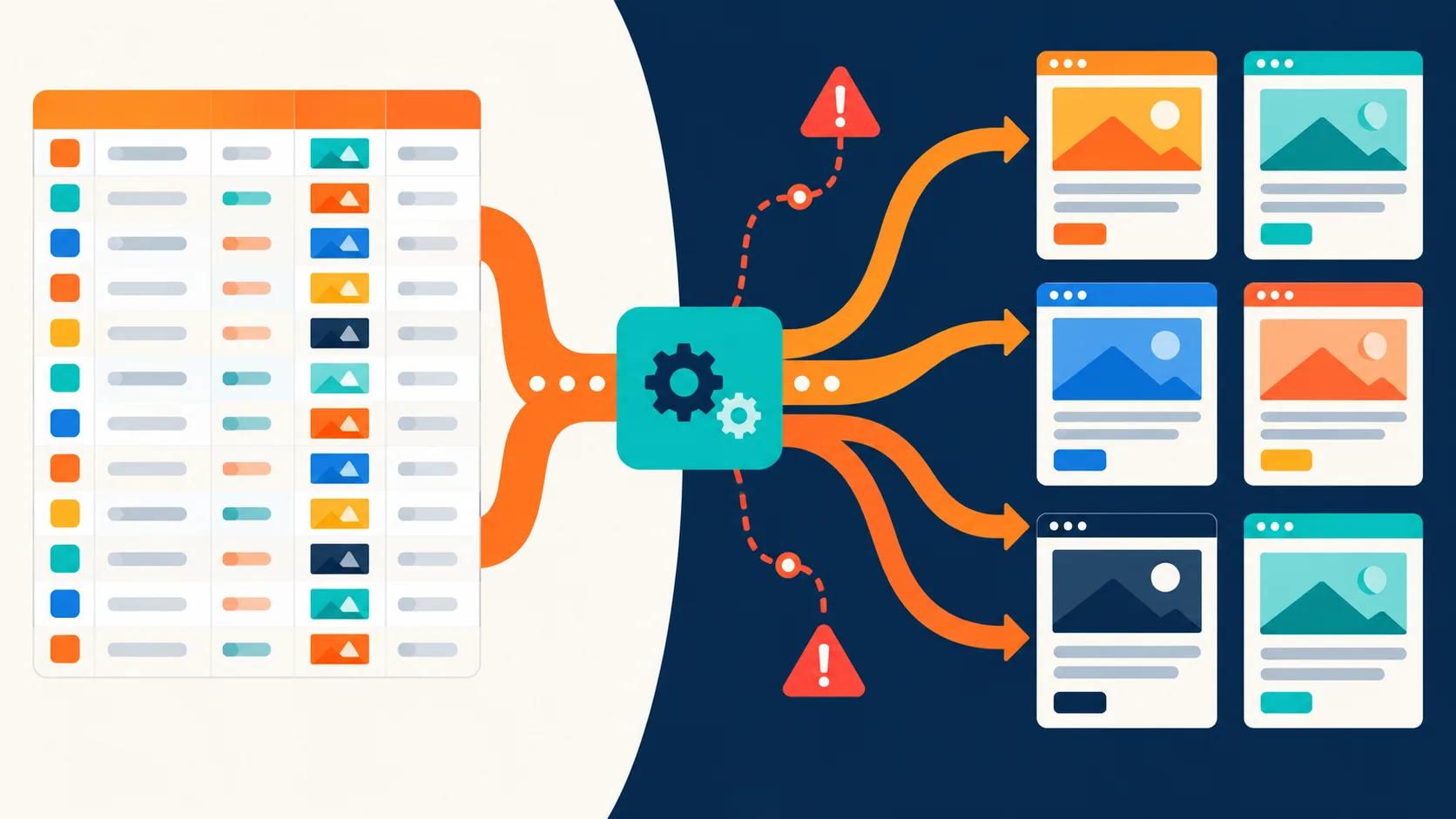
By designing your Figma component with these distinct pieces of content, you've essentially created a blueprint for your Webflow build. You then build the card layout just once in Webflow, connect each part to its corresponding CMS field, and let Webflow automatically generate a card for every person in the collection.
This method is the backbone for any kind of repeating content on a site:
- Blog Posts (Title, Thumbnail, Rich Text, Author)
- Portfolio Projects (Project Name, Client, Image Gallery)
- Services (Service Title, Icon, Description)
- Job Postings (Position, Location, Details)
This approach ensures your design is not just visually consistent but also functionally robust. It empowers clients to manage their own content through the simple Webflow Editor without ever needing to break your beautiful design. That foresight is what separates a good build from a great one.
Finalising the Project: QA Testing and Client Handoff
Getting your Figma to Webflow project over the finish line takes more than just hitting ‘publish’. The final sprint is all about meticulous quality assurance (QA) and a smooth, empowering handover to your client. This is really your last chance to iron out any kinks and make sure the final site isn't just beautiful, but also rock-solid and easy for your client to actually use.
A sloppy launch can sour the whole project and undo all your hard work. Think of this final stage as the professional polish that really shows your attention to detail.
A Comprehensive QA Checklist
Before you even think about sending that staging link to your client, you need to try and break the site. Seriously. Your job is to find every potential issue so the end-user doesn't have to. A methodical testing process is key.
I always start with the most common points of failure:
- Cross-Browser Compatibility: Test the site on the latest versions of Chrome, Safari, Firefox, and Edge. What looks pixel-perfect in Chrome can sometimes look a bit wonky in Safari, so don't skip this.
- Responsive Breakpoint Audit: Don't just rely on Webflow's standard breakpoints. Slowly resize your browser window from mobile to desktop widths and watch for any elements that jump, overlap, or just plain break the layout at those awkward in-between sizes.
- Interactive Element Validation: Click everything. Every link, every button, every form. Make sure internal links point to the right pages, external links open in a new tab, and that forms show the correct success and error messages when you submit them.
- Performance Audit: Run the live staging site through Google PageSpeed Insights . This is a great final check for any optimisation opportunities you might have missed, like an uncompressed image or some unused CSS classes you can clean up in the Style Manager.
A thorough QA process is non-negotiable. It protects the integrity of your work, minimises frustrating post-launch fixes, and builds client trust by delivering a polished, reliable final product.
The Art of a Great Client Handoff
Once the site is technically flawless, the focus shifts to setting your client up for success. A great handoff isn't just about sending over the login details; it's about giving them the confidence and knowledge to manage their new website without you. A confused client is a client who will be in your inbox constantly.
The single most powerful tool for a successful handoff is a custom video tutorial. I can't recommend this enough. Record a short screencast that walks them through their specific website.
Make sure you cover the essentials:
- Navigating the Webflow Editor interface.
- How to create a new blog post or add a new team member in the CMS.
- The basics of updating text and swapping out images on static pages.
- Where to find and update the on-page SEO fields.
This personalised touch drastically cuts down on future support questions and really solidifies your reputation. It shows you're invested in their long-term success, which can easily turn a one-off project into a lasting partnership and open the door to future work.
Got Questions? We've Got Answers
When you're diving into the Figma to Webflow workflow, a few common questions always seem to pop up. Let's tackle some of the ones we hear most often.
Can I Just Import My Figma Designs Straight Into Webflow?
Technically, yes, you can. The official Figma to Webflow plugin exists for this very reason, but it's far from a magic wand. For very simple layouts or just to get a basic structure in place, it can be a decent starting point.
But for a professional, production-ready site that needs to be clean, scalable, and easy to maintain? A manual rebuild is still the gold standard. The plugin often spits out a messy structure with extra divs and confusing classes, meaning you'll spend more time cleaning up than you would have building it right from the start.
Do I Actually Need to Know How to Code to Use Webflow?
Nope, you don't need to write a single line of code. That's the beauty of Webflow ; it's a visual development tool that handles the HTML, CSS, and JavaScript for you.
That said, having a solid grasp of web fundamentals is a game-changer. Understanding concepts like the box model, how classes work, and the basic principles of responsive design will make your life infinitely easier. It helps you think like the web, troubleshoot problems effectively, and translate your Figma designs into a robust site much more smoothly.
Ready to turn your killer designs into a high-performing Webflow site that actually converts? Derrick.dk specialises in pixel-perfect Figma to Webflow development that delivers results.
Book a free discovery call today , and let's build something great together.

.jpg)