A Practical Guide to Modern Website Layout Design
%20(1).avif) Written by Derrick Kityo
Written by Derrick KityoLearn website layout design from the ground up. Our guide covers proven strategies for creating user-friendly, responsive, and high-performing web layouts.
A truly effective website layout is so much more than just a pretty arrangement of elements on a page. Think of it as the strategic framework that guides users, tells your brand's story, and, most importantly, drives conversions. It’s the visual blueprint for your content, making sure everything is presented clearly, logically, and in a way that actually connects with your audience.
Building Your Design Strategy From The Ground Up
Before you even think about placing a single pixel, the best layouts start with a rock-solid strategy. This is the foundation. It's all about nailing down the 'why' behind your design choices so that every single element has a clear purpose.
Honestly, skipping this step is like trying to build a house without a blueprint. It might look okay from a distance, but it won't have the structural integrity it needs to actually work.
Define Your Core Objectives
First things first: what is the primary goal of this website? The answer to that question will shape your entire layout. A layout built for e-commerce, for example, is going to be laser-focused on product galleries and a dead-simple checkout process. A B2B software site? That's going to be all about lead-gen forms and showcasing features.
You have to translate those big business goals into tangible website objectives.
- Increase Online Sales: Your layout needs to create the shortest possible path to purchase. This means prominent calls-to-action (CTAs), fantastic product photos, and an absolutely seamless shopping cart experience.
- Generate Qualified Leads: The design has to actively guide people towards your forms. This involves clear value propositions and making sure contact info is exactly where users expect to find it.
- Boost User Engagement: This goal demands a layout that invites exploration. Think related articles, interactive elements, and crystal-clear navigation to keep people clicking around for longer.
This simple three-step visual shows how you can move from those high-level goals to a concrete site structure that makes sense.
This process really hammers home how defining your goals, doing the research, and then building the information architecture leads to a design with real purpose.
Understand Your Audience Deeply
Once your goals are locked in, you have to square them with the needs and habits of your actual users. Guesswork here is a recipe for disaster, leading to layouts that just frustrate visitors and kill your conversion chances. Creating detailed user personas is an absolute game-changer for this.
A user persona is just a semi-fictional character you build from user research that embodies your ideal customer. It should cover their demographics, what motivates them, their biggest pain points, and their online habits.
For example, a persona for a fintech startup might be "Alex, a 32-year-old marketing manager who is tech-savvy but short on time, valuing efficiency and clean data visualisation." That single insight immediately informs your layout decisions—you know you need a clean, data-forward design with as little friction as possible.
Mapping the customer journey is the natural next step. You visualise the entire path a user like Alex takes, from their very first interaction with your brand all the way to becoming a customer. This map shines a light on all the key touchpoints where your layout has to step up and provide clarity.
Organise Content With Information Architecture
With a solid grasp of your goals and your audience, you can finally start structuring your content in a way that makes sense. This is the practice of Information Architecture (IA) , and its entire purpose is to create a user experience that feels intuitive and predictable. When your IA is strong, users find what they need without having to think too hard about it.
The main tool for the job is a sitemap. It's essentially a hierarchical diagram that maps out every single page on your website and shows how they all link together.
A great sitemap doesn't just list pages; it tells a story about how a user will navigate through your content. It turns a collection of pages into a cohesive journey, ensuring the website layout design feels natural and supportive.
As you build out your strategy, you might find that modern tools can help speed things up. For instance, exploring an AI website builder for WordPress can be a great way to simplify the creation process.
Ultimately, building a sitemap clarifies everything from your main navigation and footer links to the overall flow of the site. It helps prevent that all-too-common problem where users get lost or confused. This foundational work ensures your visual design is built on a solid, user-centric structure.
Structuring Content With Wireframes And Grids
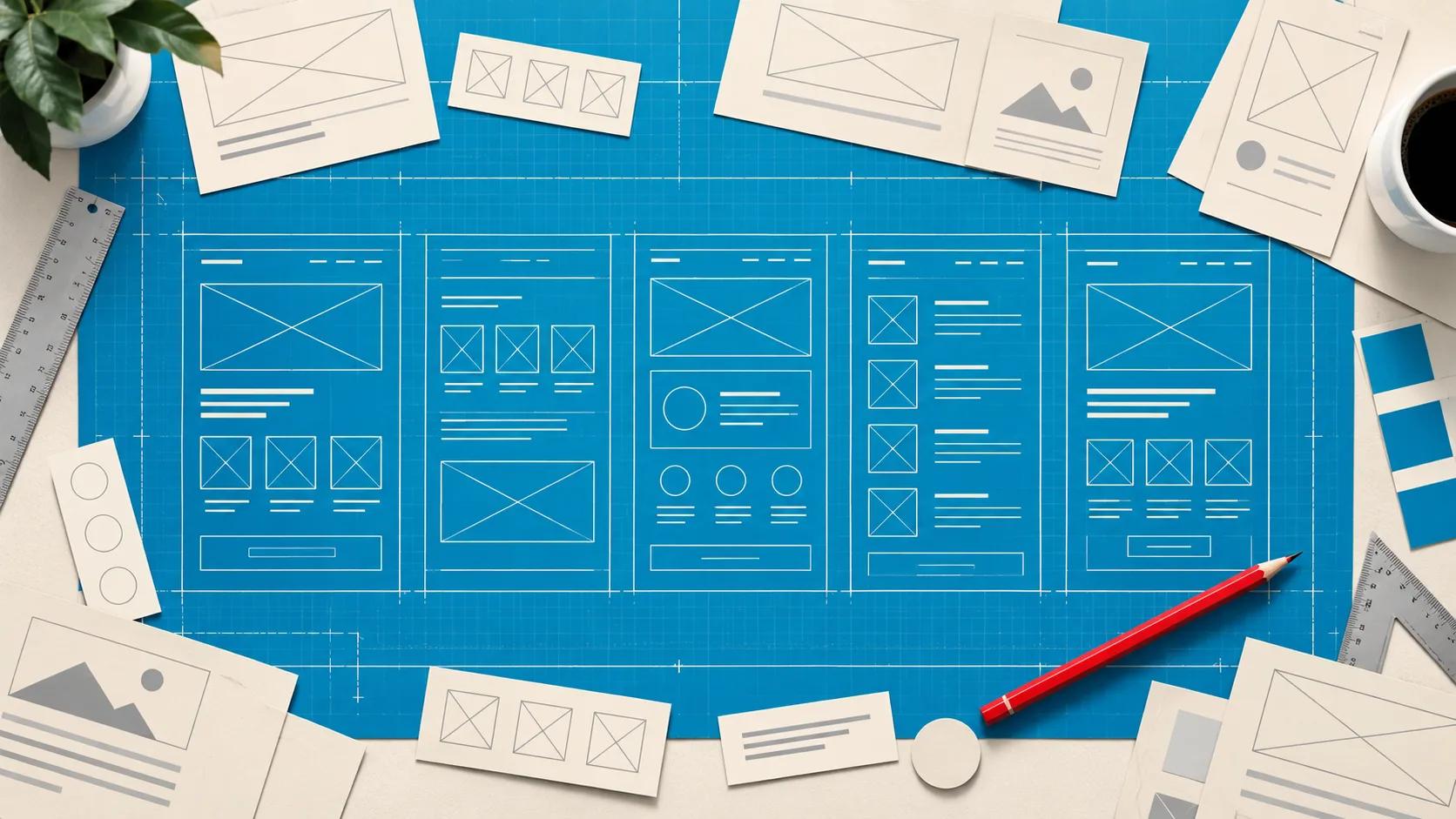
Once you’ve nailed down your strategy and mapped out the user’s journey, it’s time to bring those ideas to life. This is where wireframing steps in. Think of it as the architectural blueprint for your website layout—it’s all about structure and function, not looks. Forget about colours and fonts for now.
A wireframe is a simple, low-fidelity sketch of a webpage. It’s the skeleton that shows where everything goes: the navigation, hero section, calls-to-action (CTAs), and content blocks. This approach lets you play around with different layouts and user flows without sinking time and money into a full-blown visual design.
From Paper Sketches To Digital Blueprints
The best thing about wireframing is how simple it can be. You don't need fancy software to start. Honestly, a pen and paper sketch is often the quickest way to get ideas out of your head and onto something you can actually discuss with your team. It’s perfect for rapid brainstorming without getting stuck on tiny details.
After you've got a rough direction, you can jump into digital tools for something a bit more polished.
- Low-Fidelity (Lo-Fi): These are your basic sketches. Just simple shapes and maybe some placeholder text. They’re perfect for getting the core layout and information hierarchy sorted.
- High-Fidelity (Hi-Fi): These are much more detailed. You’ll often find actual copy, specific image placements, and even interactive elements. Tools like Figma or Adobe XD are brilliant for creating these refined blueprints that look a lot like the final product.
No matter which tool you use, the goal is always the same: create a clear structural guide that everyone agrees on before any development work begins. For a deeper dive, check out our complete guide on creating a wireframe for your next project.
Wireframing isn't just about placing boxes on a page. It's a critical thinking exercise that forces you to prioritise information and design a user journey that feels effortless and logical.
Getting this foundation right is more important than ever. Here in the UK, for instance, economic pressures are changing how businesses think about web development. The web design sector is projected to see its revenue dip to £640.6 million in 2025, as businesses spend more cautiously. This means every design decision has to prove its worth, pushing us to create layouts that don't just look good but are incredibly effective at converting users. You can read more about the economics of UK web design on invernessdesignstudio.com .
Bringing Order With Grid Systems
If wireframing sets the big-picture structure, a grid system brings order to the smaller details. A grid is that invisible framework guiding the alignment, spacing, and rhythm of all your on-page elements. It’s what separates a balanced, professional design from a chaotic mess.
Using a grid makes sure your website layout is consistent across every single page and device. This predictability helps users find their way around your content more easily because they subconsciously learn where to expect things to be.
There are a few different types of grids out there, each suited for different kinds of content and design goals.
Choosing The Right Grid For Your Project
The go-to choice in modern web design is the 12-column grid . It’s so popular because it’s incredibly versatile. You can easily divide it into halves, thirds, fourths, or sixths, which opens up a massive range of possibilities for both symmetrical and asymmetrical layouts. It’s a fantastic starting point for almost any project, whether it's an e-commerce site or a marketing blog.
Of course, there are other options:
- Modular Grid: Picture a checkerboard, with consistent horizontal and vertical divisions. This is perfect for portfolio sites or image galleries where tight alignment is crucial for a cohesive look.
- Hierarchical Grid: This one is less about rigid columns and more about organising content by importance. You'll often see it in more artistic or unconventional layouts where the information flow follows a custom-defined priority.
Ultimately, the grid system is your secret weapon for creating a polished, organised, and user-friendly website. It provides the discipline needed to ensure every element has its place, leading to a final design that feels intentional and harmonious.
Creating A Clear Visual Hierarchy
Once your wireframe and grid are locked in, you’ve got the skeleton of your website. Now it's time to add the muscle and nerves – those visual cues that tell visitors what's important without spelling it out. This is the heart of visual hierarchy: the art of arranging elements to guide the eye and communicate importance instantly.
Think about it. When you land on a webpage, your brain makes split-second decisions about where to look first, then second, then third. A strong visual hierarchy makes this process feel natural and effortless. It creates a smooth path, leading users from the main headline to key bits of information and, ultimately, to your main call-to-action (CTA).
Guiding The User's Eye With Core Principles
You don't need a PhD in design theory to master visual hierarchy. It really boils down to applying a few fundamental principles that turn a flat, static layout into something dynamic and intuitive.
- Scale and Size: This one's the most obvious. Bigger things grab more attention. Your main headline ( H1 ) should be the most prominent piece of text, followed by your subheadings ( H2 , H3 ), and then your body copy. A big, bold "Get a Demo" button will always win the attention battle against a small text link.
- Colour and Contrast: Using colour strategically can make key elements jump off the page. A brightly coloured CTA button against an otherwise muted background is pretty hard to ignore. Likewise, high contrast between text and its background (like classic black text on a white background) is crucial for readability and directing focus.
- Negative Space: Sometimes what you don't put on the page is just as important as what you do. This is negative space, or white space – the empty areas around your elements. Giving elements room to breathe reduces clutter, makes content easier to digest, and helps important things stand out. For example, surrounding your main CTA with plenty of space ensures it doesn't get lost in the noise.
These are just a handful of the core ideas that make a design click. For a deeper dive, check out our guide covering the fundamental elements of visual design .
Leveraging Common UI Design Patterns
While creativity is key, you don't need to reinvent the wheel for every single part of your website's layout. People visiting your site have built-in expectations from the thousands of other sites they've used. Leaning on these established conventions, known as UI (User Interface) patterns , is one of the smartest things you can do.
UI patterns are just reusable, proven solutions to common design challenges. Using them lowers the user's cognitive load – the mental energy needed to use your site – because they aren't forced to learn a new system from scratch.
Think of UI patterns as a shared language between you and your users. A magnifying glass icon always means "search," and a logo in the top-left corner almost always takes you back to the homepage. Sticking to these conventions makes your site feel familiar and easy to navigate right away.
A few patterns you absolutely can't live without include:
- The Z-Pattern: For pages that aren't too heavy on text, people tend to scan in a "Z" shape. They start top-left, scan across the top, shoot down diagonally to the bottom-left, and then scan across the bottom. If you place your most important elements along this path (logo top-left, CTA top-right, key feature bottom-left, final CTA bottom-right), you can seriously boost engagement.
- Cards: Made famous by sites like Pinterest, cards are neat, self-contained rectangles of information that group related content. They're incredibly flexible for showing off blog posts, products, or features in a way that's easy to scan.
- Navigation Tabs: When you need to organise content within a single page, tabs are universally understood. They let users flick between different sections of content without loading a whole new page, which makes the experience feel much quicker and more organised.
By bringing together these foundational principles of visual hierarchy with well-known UI patterns, you can transform your static wireframe into a thoughtful, user-friendly interface that actively steers visitors towards your goals.
Designing For Every User And Every Device
A brilliant website layout is a fluid one. It has to adapt and perform flawlessly whether it’s being viewed on a massive desktop monitor or a tiny smartphone screen. This is the heart of responsive design, and in today's multi-device world, it's completely non-negotiable for a good user experience.
The whole idea is to build a single site that intelligently reconfigures itself to fit any screen. Instead of juggling separate websites for mobile and desktop, you create one smart layout. This approach leans on a few key techniques to get the job done.
- Fluid Grids: Forget fixed pixel widths like 960px . Fluid grids use relative units like percentages, allowing columns and containers to stretch or shrink in proportion to the screen.
- Flexible Images: Images are coded to scale within their containers. A simple bit of CSS, max-width: 100% , ensures images never overflow their box, which prevents that awful horizontal scrolling on small devices.
- Media Queries: These are the real magic. Media queries are CSS rules that apply specific styles only when certain conditions are met, like the screen's width. This is how you change font sizes, hide non-essential elements, or completely rearrange the layout for different devices.
Embracing The Mobile-First Mindset
A really practical way to tackle responsive design is with a mobile-first strategy. It's exactly what it sounds like: you design the simplest, most streamlined version of your layout for small screens first. From there, you progressively add more complex features and layout tweaks for larger screens.
This method forces you to prioritise what's truly essential. It makes sure your core content and functionality are perfect on the most constrained devices, which usually leads to faster load times and a much better experience for mobile users—who, let's be honest, often make up most of your traffic.
Adopting a mobile-first approach isn't just a technical choice; it's a strategic one. It ensures that the core user experience is solid and accessible, forming a strong foundation upon which you can build richer experiences for larger screens.
Responsive Design vs Adaptive Design Key Differences
When creating layouts that work across multiple devices, designers generally choose between two main strategies: responsive and adaptive. While both aim for a great user experience, they get there in different ways. This table breaks down the key distinctions to help you decide which approach is right for your project.
Ultimately, responsive design has become the industry standard for its "one-size-fits-all" flexibility, but adaptive design still has its place for highly targeted experiences.
Building An Inclusive And Accessible Web
A truly great layout goes beyond just looking good on different devices. It has to be usable by everyone , including people with disabilities. This is the practice of web accessibility (often shortened to A11y ), and it’s not just the right thing to do—it’s good business. An accessible site broadens your audience and can even give your SEO a boost.
Making your site accessible means thinking about how people with visual, auditory, motor, or cognitive impairments will interact with your content. The good news is that many accessibility best practices are surprisingly straightforward to implement.
Here are a few actionable tips to get you started:
- Ensure Strong Colour Contrast: Text needs to be easily readable against its background. Plenty of free tools are available to check if your colour pairings meet the official Web Content Accessibility Guidelines (WCAG) standards.
- Enable Keyboard Navigation: Every interactive element—links, buttons, forms—must be reachable and usable with just the Tab key. This is critical for anyone who can't use a mouse.
- Write Meaningful Alt Text: Any image that conveys information needs descriptive alt text. This is what screen readers announce to visually impaired users, so they know what the image is about.
- Use Semantic HTML: Structure your content with proper HTML tags like <nav> , <main> , and <button> . This gives context to assistive technologies, helping them interpret the page correctly.
As you plan for diverse user experiences on your website, it can be helpful to see how these principles apply elsewhere. For instance, looking into email design best practices shows how optimising layouts for different devices and clients is a universal challenge. At the end of the day, designing for every user ensures you create a digital experience that is equitable, effective, and reaches the widest audience possible.
Want to apply this to your own website or app?
Tell me what you are working on and where it is getting stuck. I will help you turn the useful ideas into shipped work.
Connecting Layout Design To Performance And SEO
A stunning website layout means very little if it takes an age to load or is invisible to search engines. Your design choices aren't just aesthetic; they're deeply intertwined with technical performance and search engine optimisation (SEO). Every large image, custom font, or fancy script you add can either enhance or cripple the user experience, directly affecting your site's speed and rankings.
The connection is simple: a slow, clunky website frustrates users. This frustration leads to high bounce rates, which sends a pretty clear negative signal to search engines like Google. A layout that's beautiful but bloated with unoptimised assets is actively working against your business goals.
Prioritising Page Speed And Core Web Vitals
Google's Core Web Vitals are a set of real-world metrics that measure a page's user experience, focusing on loading, interactivity, and visual stability. Your layout design has a massive impact on these scores.
A slow site doesn't just annoy visitors; it costs you money. Designers are increasingly shifting towards minimalist layouts that load quickly and convert more effectively, directly aligning with metrics like having the Largest Contentful Paint (LCP) under 2.5 seconds . For UK brands, this balance is critical, as slow websites cost retailers billions in lost revenue each year. You can dig into more stats about the UK web design market's financial impact on ibisworld.com.
Here are a few actionable strategies to make sure your layout is built for speed from the ground up:
- Image Optimisation: This is the big one. Large, uncompressed images are the number one cause of slow load times. Always compress images before you even think about uploading them, and use modern formats like WebP to get the best balance of quality and file size.
- Lazy Loading: Implement lazy loading for images and videos that are "below the fold". This simple trick defers loading off-screen media until a user actually scrolls to it, which can dramatically speed up that crucial initial page load.
- Limit Custom Fonts and Scripts: While custom fonts and third-party scripts add personality, each one adds another request the browser has to make. Be ruthless here. Only load what is absolutely necessary for the core experience.
For a more detailed breakdown of performance tweaks, check out our guide on how to improve website speed .
Structuring Your Layout For Search Engines
Beyond speed, the very structure of your layout gives search engines critical signals, helping them understand your content's hierarchy and relevance. Put simply, a well-organised layout is an SEO-friendly layout.
Search engine crawlers don't "see" your site like a human does. They read the underlying code to figure out what's what. This is exactly why a logical, clean HTML structure is non-negotiable for any serious website layout design.
SEO isn't an afterthought you sprinkle on at the end; it's baked into the very foundation of your layout. A clean, semantic structure tells Google exactly what your page is about, making it easier to rank for the right keywords.
Think of these structural elements as your direct line of communication with search engines:
- Logical Heading Hierarchy: Use your headings (H1, H2, H3) correctly to outline your content. You should have only one H1 per page for the main title, with H2s for major sections and H3s for the subsections within them. This creates a clear, crawlable map of your information.
- Clean, Semantic Code: A layout built with clean, semantic HTML—using tags like <nav> , <main> , and <article> as they were intended—helps search engines understand the purpose of each content block. This is a hallmark of professional Webflow development.
- Mobile-First Design: We’ve touched on this before, but it bears repeating. Google primarily uses the mobile version of a site for indexing and ranking. A layout that isn't perfectly optimised for mobile will struggle to rank well, no matter how good it looks on a desktop.
By linking your design decisions to performance metrics and SEO best practices from the start, you create a layout that doesn't just look good—it also works hard to attract and keep your audience.
Common Website Layout Design Questions
Even with a solid plan, jumping into website layout design can stir up a few questions. Getting straight answers is key to building your confidence and making smarter design choices down the line. Let's tackle some of the most common ones I hear.
Think of this as a quick-fire round to clear up any confusion and get you back to designing with a solid foundation.
What Is The Most Important Principle In Website Layout Design?
If I had to pick just one, it would be visual hierarchy . It's the unsung hero of good design.
Visual hierarchy is all about arranging elements on a page to signal their importance, guiding a user’s eye naturally towards what matters most—like a key piece of information or a call-to-action button. When it's done right, you don't even notice it's there. The site just feels intuitive. It's the invisible hand that uses scale, colour, contrast, and empty space to create a clear path and stop visitors from feeling overwhelmed.
How Do I Choose The Right Grid System For My Layout?
There's no single "best" grid system; the right choice really boils down to your content and what you want to achieve.
First, think about the density and type of information you're working with.
- For content-heavy sites like news portals or blogs, a 12-column grid is your best friend. It’s incredibly flexible and can be split into halves, thirds, or quarters, giving you a ton of options for arranging different types of content.
- For portfolio or image-centric sites , a modular grid is often a better fit. It provides structure both horizontally and vertically, making sure all your visual elements align perfectly for a clean, organised look.
When in doubt, a 12-column grid is a versatile and safe bet for most modern web projects. It provides a robust foundation that can adapt to almost any layout you can dream up.
What Is The Difference Between UI And UX In Website Layout?
Ah, the classic question. It's easiest to think of it with a simple analogy: if you were building a house, UX is the architectural blueprint, while UI is the interior decoration.
UX (User Experience) is the overall feeling a user gets. Did they find what they were looking for easily? Was the journey logical? Was the whole thing pleasant or a total headache? Good UX comes from a layout that’s intuitive and solves a user's problem without friction.
UI (User Interface) , on the other hand, is the look and feel—the actual visual bits a user interacts with. We're talking about the colours, fonts, buttons, icons, and spacing. It’s the tangible, aesthetic part of the design. A great website layout needs both to succeed. A beautiful UI built on a confusing UX will ultimately fail, just as a functional UX with a terrible UI will send users running.
How Does Website Layout Design Affect SEO?
Your layout has a huge and direct impact on your search engine optimisation (SEO). Search engines like Google don't just scan your text; they analyse your site's structure and usability to figure out how good it is.
Here are the key connections you need to keep in mind:
- Mobile-First Indexing: Google primarily uses the mobile version of a site for indexing and ranking. If your layout isn't fully responsive and optimised for mobile, you're going to have a tough time ranking well. It's non-negotiable.
- Core Web Vitals: A layout bloated with unoptimised images, heavy scripts, or overly complex code will kill your load times and harm your Core Web Vitals scores. These metrics are a direct ranking factor.
- Content Hierarchy: A logical heading structure (one H1, then H2s and H3s) helps search engine crawlers understand how your content is organised and what’s most important. A well-structured layout makes your content much easier to index and rank.
Simply put, a fast, well-structured, and mobile-friendly layout is an SEO-friendly layout.
Ready to build a high-performing Webflow site that turns your design vision into a conversion machine? At Derrick.dk , we specialise in creating pixel-perfect, SEO-optimised websites for startups and growing companies. Book a call with us today to diagnose your current site, prioritise impactful changes, and ship a website that delivers real results.

.jpg)